AI Agents on Phones: How to Use Them — Beginner’s Guide


AI agents on phones are taking mobile technology from static voice assistants to autonomous systems that can solve multi-step problems. Smartphones have long managed our daily digital clutter – quick replies, synced calendars, on-the-fly search results – but now agents plan and execute tasks across apps on your behalf.
Unlike a traditional Q&A bot that simply generates text, an AI agent can design workflows, tap into built-in mobile tools, and execute tasks in order.
Whether you are using native Android/iOS features or trusted third-party automation apps, this beginner’s guide will teach you how to set up AI agents on your smartphone without compromising your security or privacy.
Related Topics: AI Agent: What It Is, How It Works and Why It Matters
But what can AI agents on phones actually do?
What an agent can do depends on the platform, the hardware of the device and the permissions you give it. Standard assistants answer one prompt at a time, while mobile agents run more involved workflows:
- Cross-app scheduling — see an itinerary in an email or screenshot and add structured event reminders to your calendar
- Smart information synthesis — web research aggregation, local or cloud document summarization, and actionable checklist creation
- Communication drafts — creating contextual email and chat replies based on live threads
- Automated data organization — pulling receipt totals, expense line items or reservation numbers into spreadsheets
Main difference: Some mobile AI tools just recommend next steps. True agentic workflows operate across supported apps – with your approval.
AI Agent or AI Assistant on Mobile?
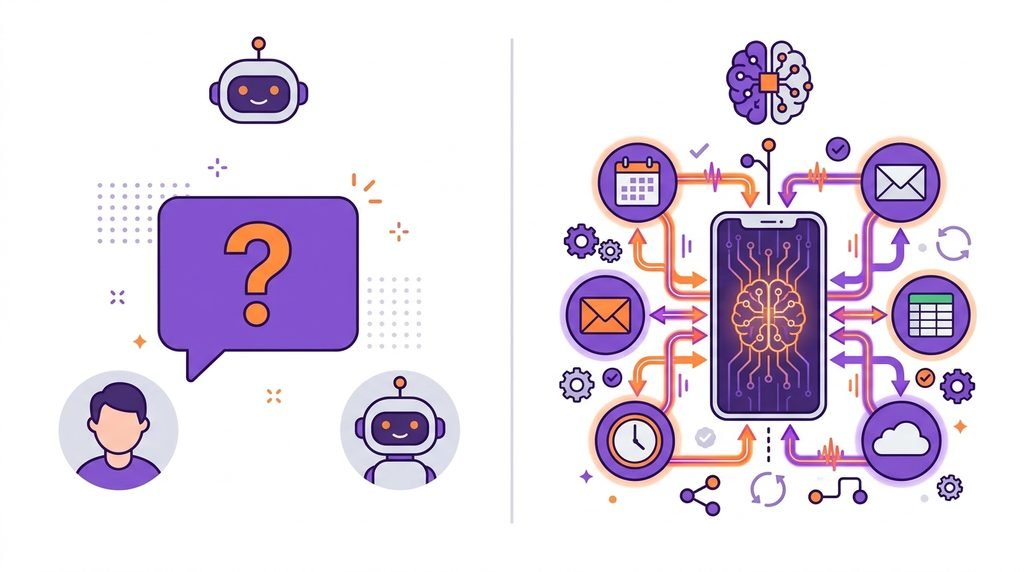
| Feature | Standard Mobile AI Assistant | Mobile AI Agent |
|---|---|---|
| Primary interaction | Single-turn Q&A and basic device control | Planning and carrying out multi-step tasks |
| Tool usage | Restricted to native commands individually | Coordinates across multiple apps, APIs and web tools |
| Autonomy level | awaiting prompt-by-prompt guidance | Semi-autonomous – develops a plan to accomplish a particular objective |
| Human input | Required for every discrete action | Only intervenes at checkpoints to review or confirm |
5 ways to begin with mobile AI agents
1. Pick The Right Tool For Your OS
Start with official, vetted platforms. Check if your device has native on-device capabilities, such as Google Gemini Nano/Live extensions on Android or Apple Intelligence on iOS, or a well-regarded third-party productivity agent. Check the OS versions it supports, the developer credentials it requires, and the specific mobile features it offers. Many desktop agents aren’t fully automated on mobile.
2. Start With Small, Isolated, Low-Risk Tasks
Don’t start with banking, sensitive files or live messaging. Run the system with a low-stakes self-contained prompt:
“Create a Saturday afternoon itinerary using these four errands. Sequence them by logical driving distance, include lunch, and present the final plan for my review before adding anything to my calendar.”
Keeps the model in a box, so you can judge its logic before you trust it with anything that matters.
3. Apply the Principle of Least Privilege
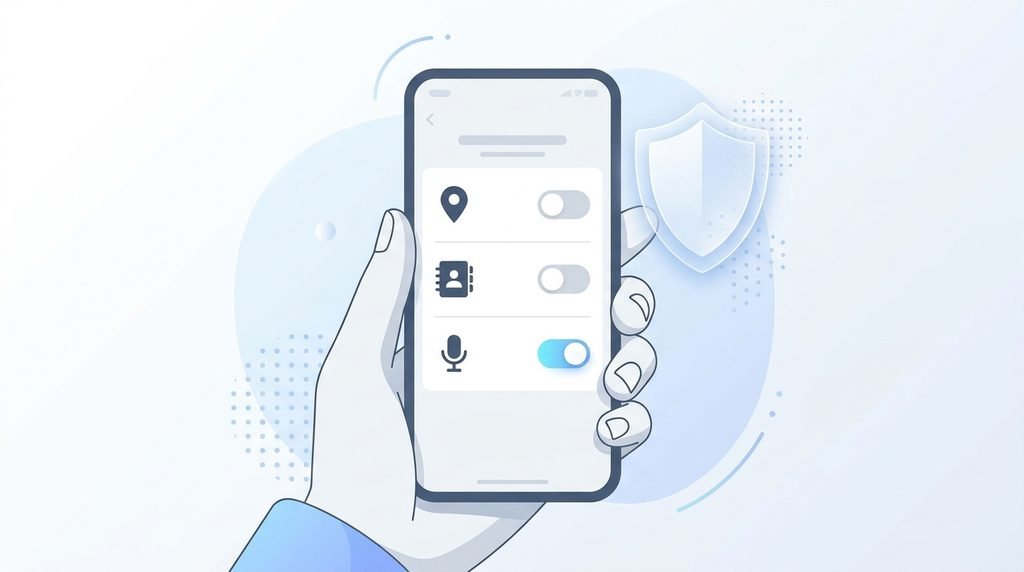
Provide least privilege necessary to accomplish current task. An agent that organizes notes or drafts summaries does not require background location access, SMS permission or contact list read/write privileges. Turn off optional integrations until you have a need for them.
4. Check before running
Always check Human-in-loop. If an agent has write access to your email, cloud storage or social apps, set it up to draft or dry run first. Review:

- Recipient addresses and file locations
- Reality of generated data
- Excluding private tokens, passwords, or personal identity records
- The simplicity of undoing the requested action.
5. Verify the Final Output
A completed task notification does not necessarily mean perfect execution. If the agent pulled web data, spot check citations. Check time zones and date if it changed a spreadsheet or calendar slot. Keep a short log of automated workflows for easy reference.
AI Automation on Mobile: Essential Security Checklist
There is sensitive data on your phone – work emails, banking apps, two-factor authentication codes and personal photos. Safeguarding this environment requires deliberate guardrails:
- Download only from official app stores. Do not sideload unknown APKs or unverified beta profiles with third-party agent functionality.
- Do not put secrets in prompts. Do not copy and paste API keys, credentials, account PINs, or one-time passcodes (OTPs) into prompts.
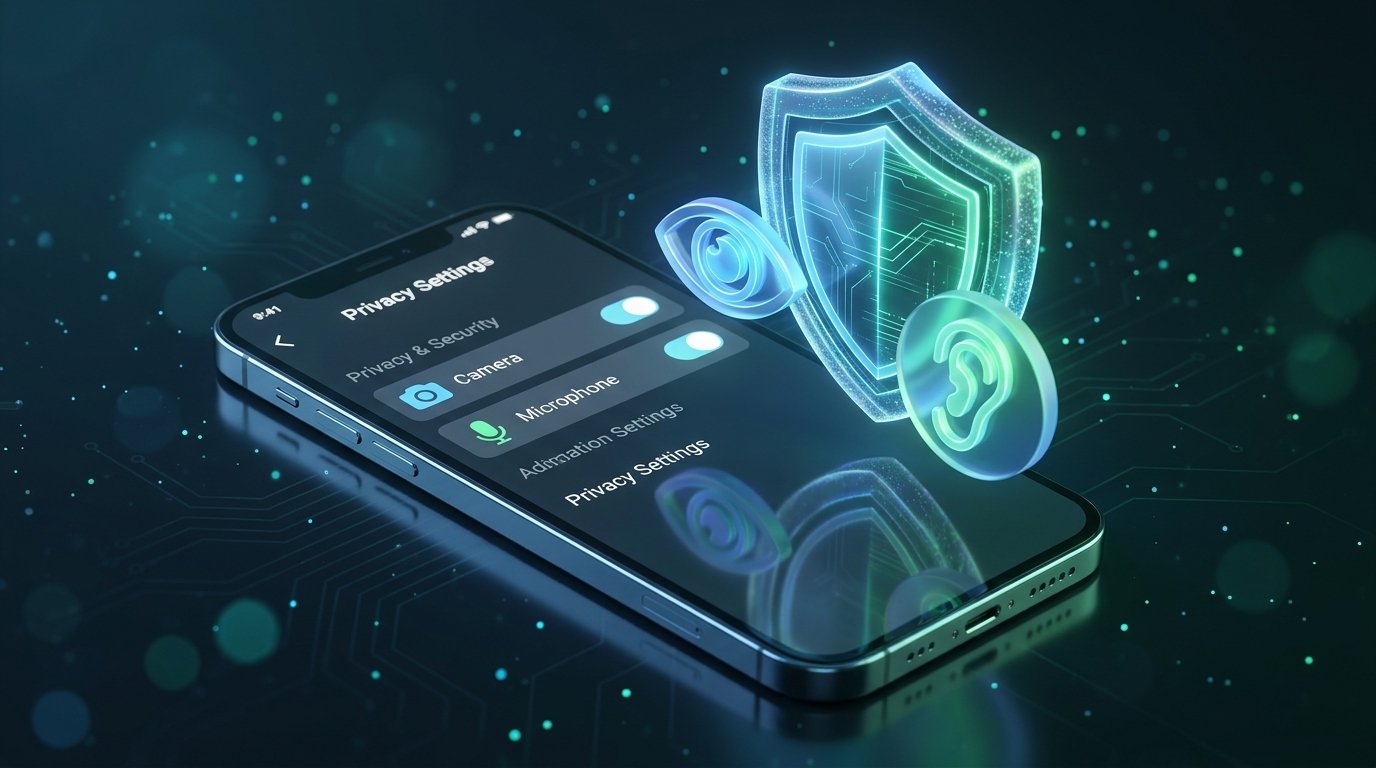
- Check app permissions regularly. Check the privacy settings of your device each month and delete any agents and companion apps that you no longer use
- Make multi-factor authentication (MFA) available. Protect each service your mobile agent connects to with hardware keys or authenticator apps.
- Verify the data retention settings. Check the privacy dashboard of the developer to opt-out your prompts and personal files from being used for model training.
The Truth Limitations
“AI agents on phones are improving fast, but they are not yet dependable for critical work:”
- Latency. Multi-step tasks requiring multiple model calls may seem slow, especially on older devices.
- Dependability.Agents that interact with real app interfaces might fail unpredictably when apps update or behave in unexpected ways.
- Ecosystem holes. Adoption is increasing but sporadic, with seamless automation dependent on apps exposing their capabilities.
Leverage agents as productivity accelerators for low-stakes work, but not as substitutes for your judgment on anything sensitive.
Judgment
AI agents on phones offer a legitimate leap forward from passive voice commands, freeing you from repetitive cross-app routines. But efficient automation isn’t about relinquishing total control — it’s about speeding up workflows while still owning your data and decisions.
Begin with a small setup, maintain strict permissions, and incrementally develop your mobile agent stack.






5 Comments
[…] to agents and want to set one up on your device? Read our practical guide to AI agents on phones for step-by-step setup, permission checks, and security […]
[…] this review of Kling 3.0, we look at whether Kuaishou’s AI video model is ready for commercial use. Creating professional-looking videos takes time — particularly for small businesses, online […]
[…] My take: If you spend your whole day in Gmail and Docs, go for Gemini. If you’re the kind of person who’s always moving between Slack, Notion and a dozen tabs, ChatGPT’s flexibility will be more your style. For a deeper dive, check out our guide on AI Agents on Phones: How to Use Them. […]
[…] You can also explore how AI assistants are becoming more useful on smartphones in our guide to AI Agents on Phones: How to Use Them. […]
[…] If you want to learn more about how AI assistants work on mobile devices, read our guide on AI Agents on Phones: How to Use Them. […]
Comments are closed.