Google Gemini Notebook – Learning, Research & Blogging

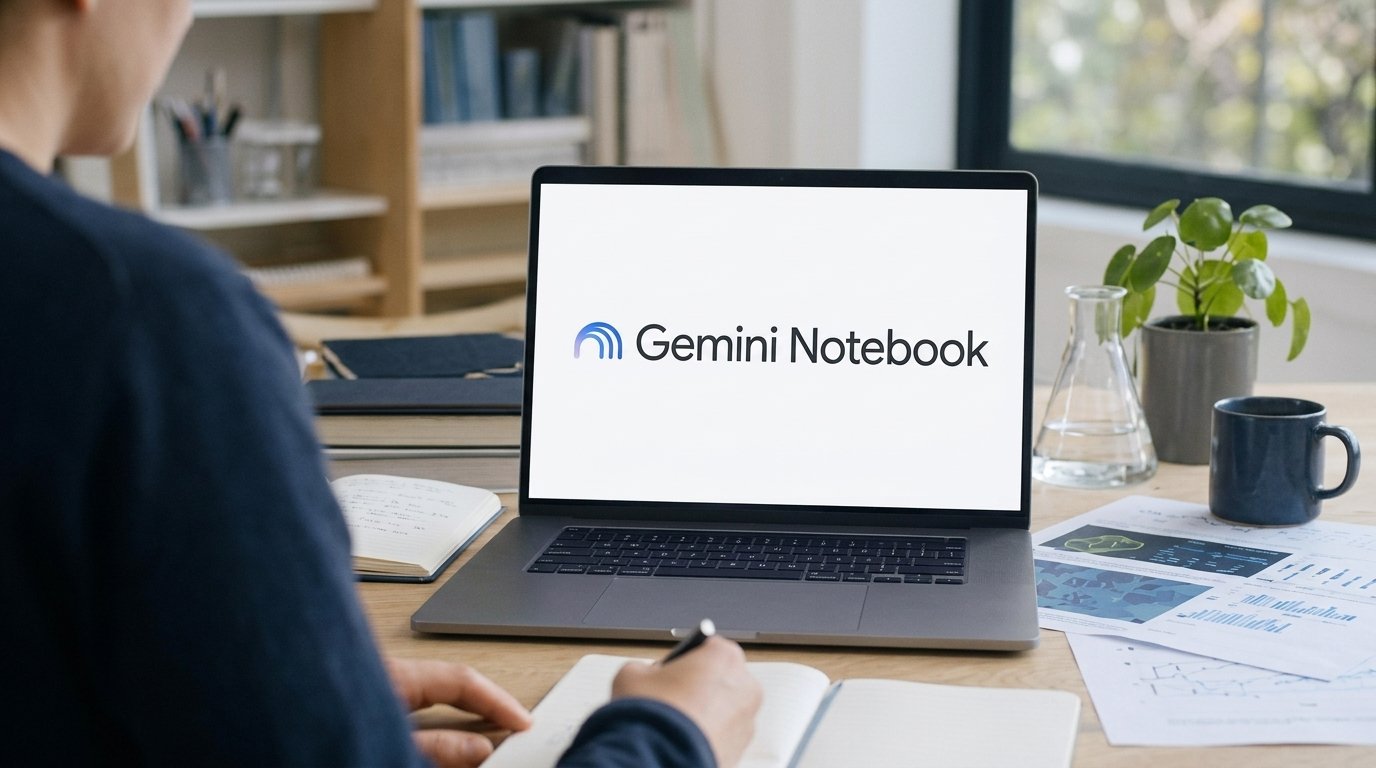
It can take hours to research a subject. You may have to read long documents, compare websites, collect information and arrange your notes before you can start writing something. Google Gemini Notebook makes this easier. It lets you work with your favorite sources, understand information, write summaries and keep your research organized all in one place.
Students, researchers, bloggers can use it for saving time and working in a more organized manner.
In this guide you will learn what is Google Gemini Notebook, how it works and how it can help you with research, studying and writing blogposts.

What is Google’s Gemini Notebook?
In July 2026, Google renamed the Gemini Notebook to NotebookLM. It is an AI tool to help users understand and organize information from the sources they choose.
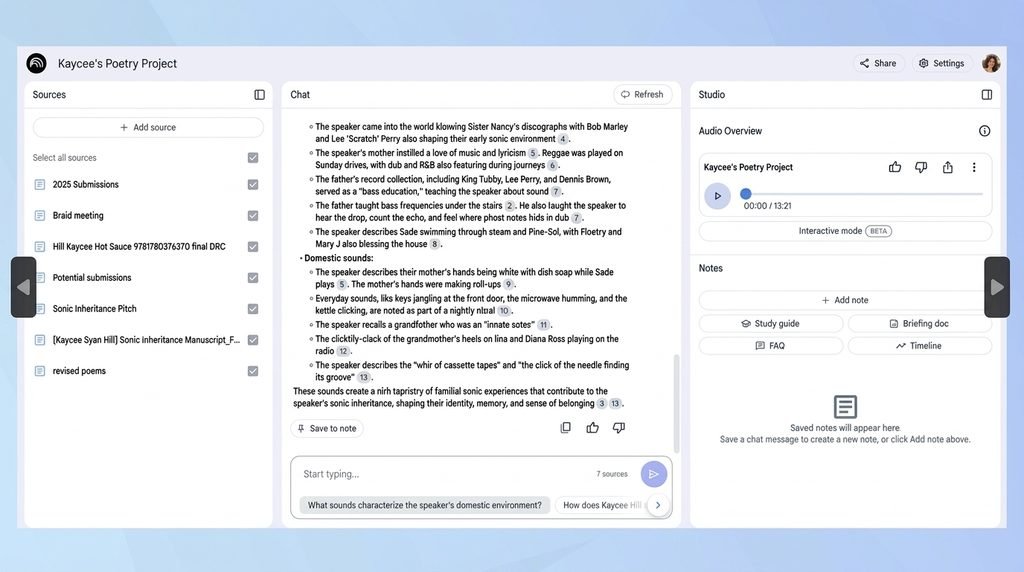
Upload documents, PDFs, Google Docs, web links, and other supported content. You add your sources . And then you can ask questions , generate summaries , compare info , make useful learning materials .
The Gemini app is also in Google’s Notebooks. You can use these notebooks to keep related conversations, files and projects together in one workspace.
The main difference is that:
- Gemini Notebook: Emphasizes the study and comprehension of a selection of sources.
- Notebooks in Gemini app: Organizes your active projects and gives you access to the full range of tools Gemini has to offer with the files and conversations you need.
You can access it at https://notebook.google.com/ or https://gemini.google.com/.
If you are comparing Google’s AI assistant with other tools, read our guide on ChatGPT vs Google Gemini: Which AI Is Better in 2026?
1. Create your first notebook
Before you begin using Gemini Notebook, choose a topic or project you want to work on. A clear topic will help you organize your sources and find answers that are useful to you.
Make the following changes:
- Visit Gemini and log-in with your Google Account.
- Open the side bar and click Notebooks
- If your account has the option, select New notebook.
- Call your notebook something descriptive.
- Give instructions on what you want to research
- Provide links and other associated documents and support material.
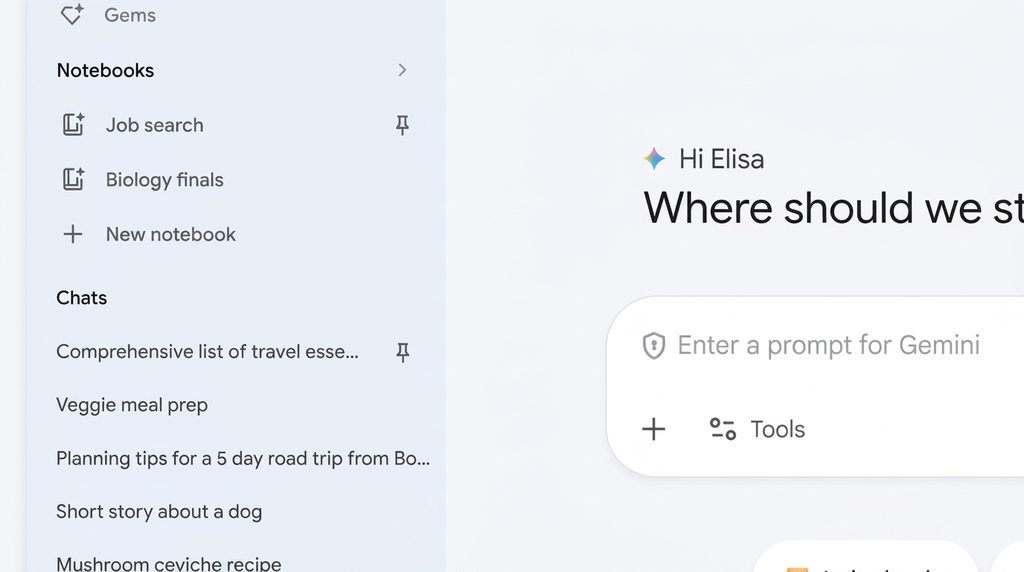
For example, if you want to do some research on smartphone technology, name your notebook Research: Smartphone Market.
Product specifications, manufacturer announcements and independent reviews are official and available.
If you don’t see the Notebooks option, check out the official Google help docs. Availability is subject to account, plan, region, and feature roll-out.
2. Adding verifiable references
The kind of research you conduct depends on the sources you use.
Gemini Notebook supports different source types:
- PDF files
- Google Docs
- Google Slides
-URLs of Web sites - Copied text.
Add references:
- Get out your notebook.
- Click Add sources.
- Upload supported files & add relevant links
- Verify that the right materials have been imported.
- Start to question your sources.

So you want to do some real research? Look for official documents, manufacturer announcements, government sites, and credible independent reporting .
If you are looking for a new smartphone, look at the official specifications, the announcement of the manufacturer and independent reviews.
From there you can ask Gemini Notebook to compare the information and see what the differences are between the sources.
IMPORTANT: AI may miss details or misinterpret documents. Always verify important figures, quotes and claims with original sources.
3. Condensing long documents
Gemini Notebook has a useful feature that can generate summaries of long documents.
No need to read every page , just ask it to put together the main points and explain them in simple terms .
For instance, try this prompt:
Prompt:
“Summarize this document in plain English. Highlight key purpose, important findings, critical components and limitations of it. I’m saying something, I’m not saying nothing.”
You can also use it to:
Read scientific papers.
- Read business reports.
- Write down notes in class.
- Extract key information from product docs.
If you have a summary, ask follow-up questions about what you don’t understand.
4. Cross Reference Different Sources’ Data
Different sites may cover the same product or technology in different ways.
For example, a manufacturer announces a new feature and an independent review states that the feature is only available on select devices or select regions.
Gemini Notebook allows you to compare the information from the sources you have selected.
Give this prompt a try:
“3. Compare the information in my sources in a table . Add claim Source of claim Conflicting information Information to verify . Don’t state unsupported claims as if they are proven facts.”
This might leave you with a choice:
- Data from a variety of sources.
- The difference between official accounts and independent inquiries.
- nothing to investigate.
Claims needing further verification.
If there are citations, open them up and see whether they actually support the statement being made.
You can also explore how AI assistants are becoming more useful on smartphones in our guide to AI Agents on Phones: How to Use Them.
5. Learn from audio summaries
Gemini Notebook tools can convert research materials into other learning formats.
For example, Audio Overview takes selected sources and creates an AI-driven audio discussion around them.
How to use: .
- Keep your research materials in a notebook.
- Locate the Audio Overview option.
- Briefly describe the sources you selected.
- Listen to the audio and refer to the original documents for more detail if you want.
This will come handy if you want to go through your research materials, but don’t want to read through every document again.
Your account and features may also allow you to use tools for flashcards, quizzes, reports, infographics, slide decks and Video Overviews.
An audio summary may not include all the details and may misinterpret information. Use this as a study aid, not as a substitute for original sources.
6. Blogging with Gemini Notebook

If you have a tech site, Gemini Notebook is a tool that can help you organize the research before writing an article.
Let’s say you want to write a blog post about a new AI tool.
You might need to look into its features, price, supported devices, limitations and practical applications. Instead of storing information in different documents, you can store relevant sources in one notebook
Inside the Working Blogger
Step 1: Collect good resources
Official releases, product documentation, third-party reports about your subject.
Step 2: Extract Important Facts
Gemini Notebook will feature key features, release date, compatible devices, limitations and pricing information, as applicable.
Step 3: Review the Data
Find what information matches up in the sources and what claims need verifying.
Step 4: Write an outline for your blog post
Ask it to provide you with an outline, including an introduction, main headings, specific examples, limitations, and frequently asked questions.
Step 5: Compose a unique article
Write your own article from the outline and confirmed facts. Some useful and interesting facts and information to help you better understand the text below.
Example Prompt for Tech Bloggers
Outline for a Beginner’s Article on Technology based on the sources in this notebook. Cover the key features, practical applications, limitations and common questions. Do not make up specifications, prices, release or test results. Mark details that require further verification.
This workflow can be useful for a website like NextTechUpdate for smartphone reviews, AI tool guides, gadget comparisons, and technology tutorials.
However, Gemini Notebook should assist your research, not supplant your own writing and editing judgment. Never say you’ve tested a product, if you haven’t.
If you create content for different audiences, our guide to the best AI tools for English to Bangla translation may also help.
7. Handling Long-Term Projects
Notebooks can also be used for projects that take several days or weeks.
Examples are:
- Creating a content or website strategy.
- Search ideas for business
- Preparing for a test
- Learning something new.
- Developing a study program for yourself.
Use a different notebook for every major project. Please send me the files you want processed and a clear description of what you need done and what the output should be.
Your content planning notebook can include your target audience, research materials, ideas for articles and editorial guidelines.
Next, prompt Gemini to sort your upcoming tasks by priority and highlight any missing information.
8. Create Better Prompts
You’ll usually get better results with specific prompts than general ones.
A good prompt will have four things:
- Task What is the AI doing?
- Sources: Which sources should it use?
- Format: Do you prefer a summary, table, outline, or checklist?
- Limitations What it should NOT assume or do?
For example:
I uploaded the docs with the specs of the smartphone. Display Processor Camera Battery Comparison Price Chart List a source for each figure. If no source is given, mark it as ‘Not stated’. Do not fabricate any information.
The clearer the instructions, the easier it is to review and check the results.
9. Confidentiality and Limitations
Before you upload documents, understand how your information will be treated.
Do not upload passwords, bank account information, customer records, proprietary business documents or sensitive personal information unless you have determined that the service terms and related policies permit it.
Google has also published details on how it processes the data in notebooks, saying that providing feedback could allow Google to see the context of that interaction. Other protections may be available to Google Workspace users.
Do not upload sensitive materials without checking Google’s current Gemini Notebook plans and how your data is used.
Keep in mind:
- AI is able to misinterpret a document or miss important information.
Summaries may not reflect the original context.
If the information is conflicting, you may need to do your own research. - Features and usage restrictions specific to accounts and plans.
— May include inaccuracies in content generated by standard.
Always check with official sources before publishing or making decisions based on important information.
Frequently Asked Questions
Is Google Gemini Notebook same as NotebookLM?
Mm mm. Google announced in July 2026 that it is renaming NotebookLM to Gemini Notebook. The research-based product survives, in a new name.
Is Google Gemini Notebook free?
If you have a Google account, you can use Google’s free Standard level of service. Google’s paid AI and eligible Workspace plans come with higher usage caps and other features. For the latest info, see Google’s official plan info here.
Can I write blog posts using Gemini Notebook?
Yes. It can help you organize sources, extract key facts, compare claims, and make outlines for articles. But you still should fact-check and write your own stuff.
Will Gemini Notebook always be correct?
No. AI responses may contain errors or inaccurate info. Check citations and original sources when using critical information.
To conclude
Google Gemini Notebook can help make research and productivity easier by putting documents and information into an organized workspace.
It’s a tool that can help learners understand study materials, professionals in breaking down reports, and bloggers in outlining research-based articles.
Have a clear goal in mind. Use reliable sources. Ask specific questions; check key claims. For the best possible answers.
Consider AI your research assistant, not a perfect oracle. Gemini Notebook is your friend when you want to spend less time organizing information and more time producing useful work.
Related Articles
- Grok AI: Features, Models and How to Use It
- ChatGPT vs Google Gemini: Which AI Is Better in 2026?
- AI Agents on Phones: How to Use Them
Official Links
- Gemini app
- NotebookLM on Gemini Notebook
- Notebooks in Gemini group projects
- Gemini Notebook limits and plans – https://support.google.com/gemininotebook/answer/16213268?hl=en
Editorial Note: Features, availability and usage restrictions are subject to change. See Google’s official documentation for the most up-to-date information.