Gemini on Apple CarPlay: How to Set It Up and What to Check If It’s Missing

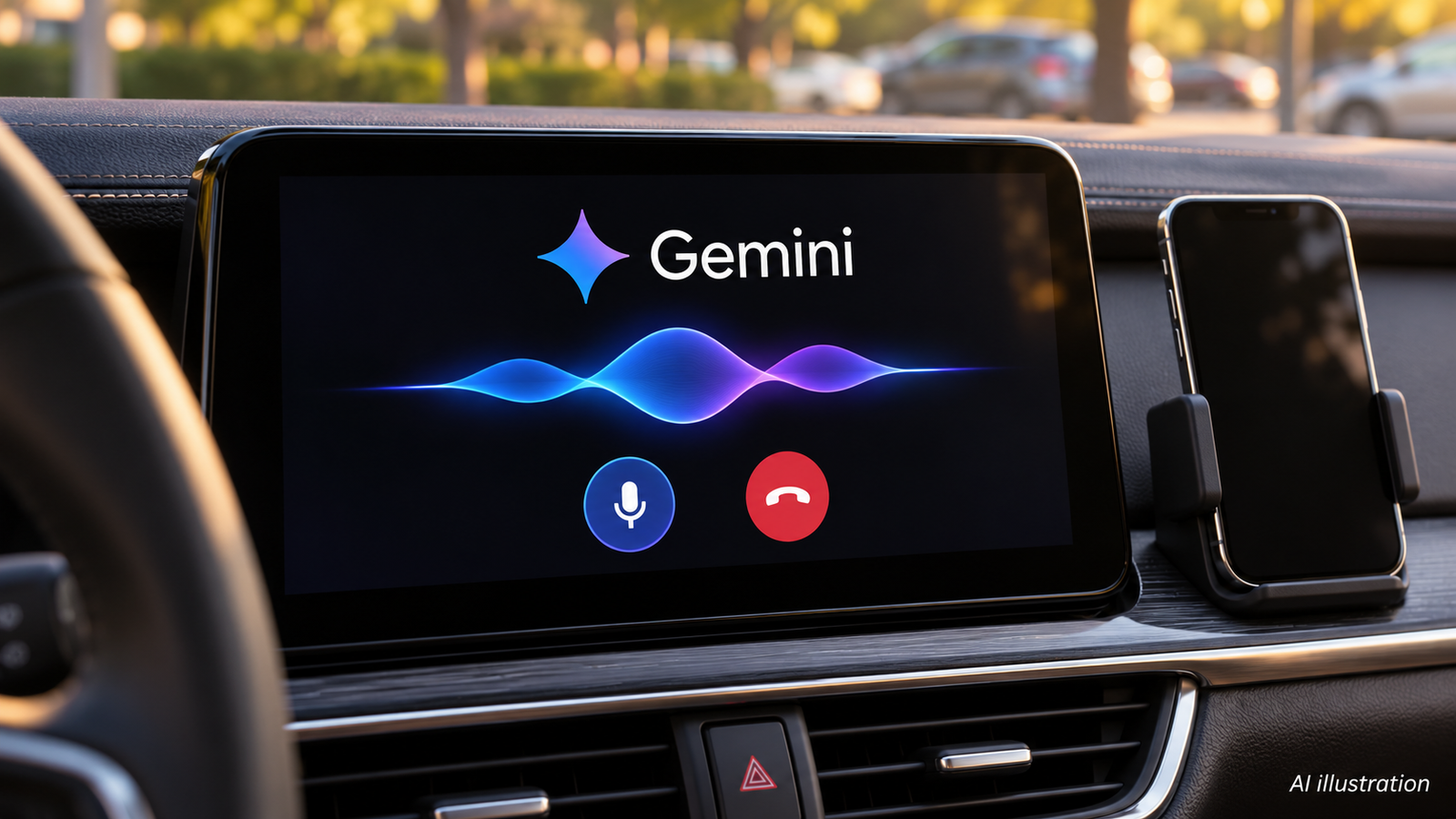
To use Gemini on Apple CarPlay, update the Gemini iPhone app, allow microphone access and use Gemini Live on your phone once. Then connect to CarPlay and look for Gemini. If the icon is missing, check the phone setup before assuming your car needs an upgrade.
Google announced the global rollout on November 11, 2026, across supported Gemini Live languages. A rollout announcement does not establish that the feature has reached every account immediately. See Google’s CarPlay announcement.
This guide separates the published setup requirements from practical checks you can try. We have not tested the integration in a vehicle. Complete setup while parked.
Quick tips before you troubleshoot
- First establish whether regular CarPlay works.
- Test Gemini Live on the iPhone before investigating the dashboard.
- Change one setting at a time so you can identify what helped.
- Avoid resetting your phone or buying an adapter as a first response to a missing app.
There are two different problems here: CarPlay failing to connect, and one app failing to appear inside an otherwise working CarPlay session. Treating both as the same fault can waste time.
Basic setup: How to Set Up Gemini on Apple CarPlay
1. Prepare Gemini Live
Open Gemini and sign in to an eligible Google account. Google’s iPhone instructions for Gemini Live say to tap Live at the bottom, or swipe left, then follow the first-use instructions.
Try a short, non-sensitive question such as:
Explain the difference between a hybrid and an electric car in two sentences.
This is an illustrative test prompt, not a recorded result. Listen for a response and confirm that Gemini can hear you before proceeding.
2. Complete the CarPlay prerequisites
Once the phone checks above are complete, connect to CarPlay and tap Gemini if it appears.
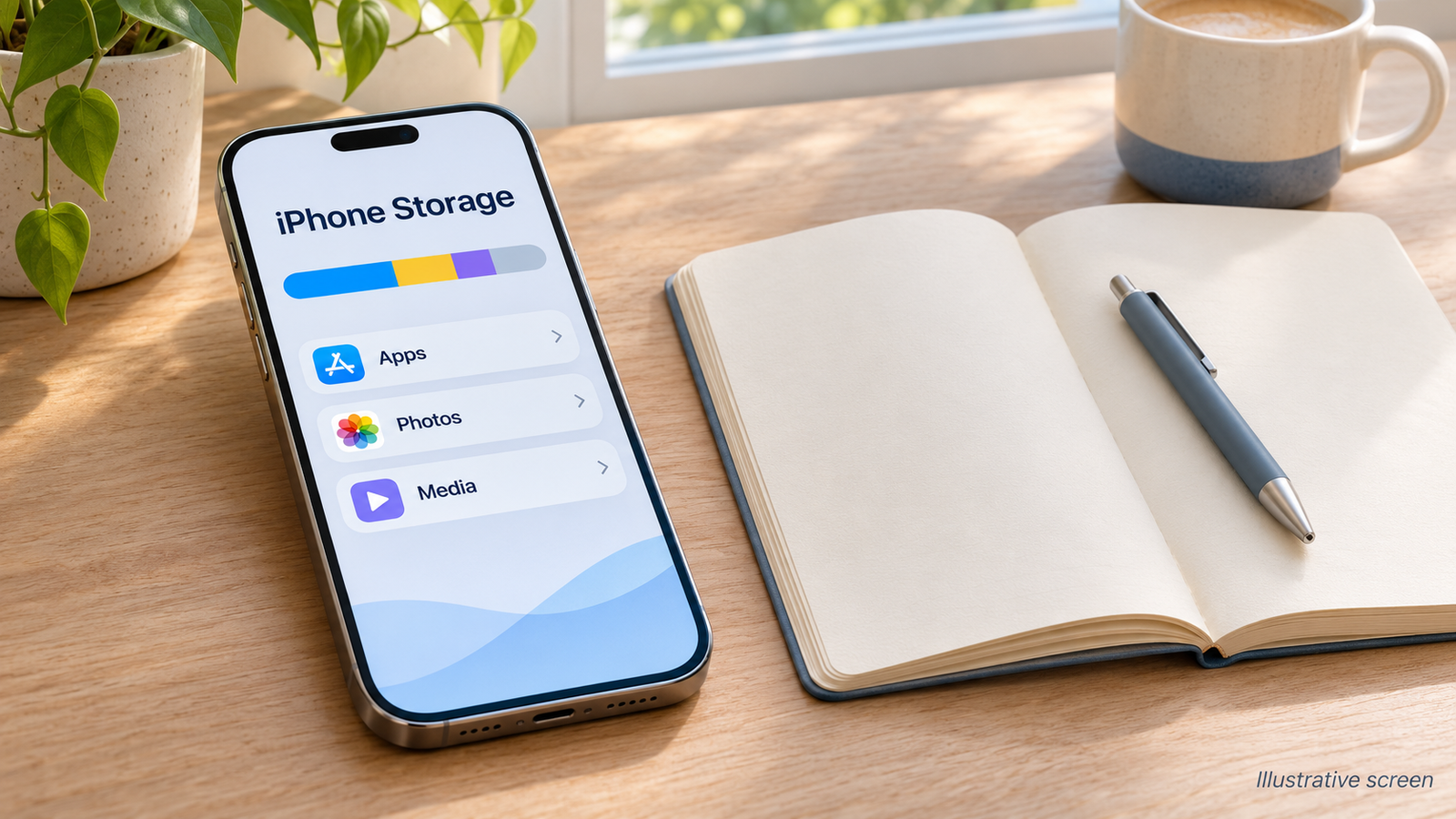
If you declined microphone access during setup, inspect the app’s microphone permission in iPhone Settings. Use the settings search if the menu location differs on your installed iOS version.
3. Check success while parked
Use another harmless question. Confirm that you can hear the reply through the intended audio output and that you know how to stop the session. Do not connect personal email just to prove that the app works.
Gemini on Apple CarPlay Not Showing? Start Here
These are diagnostic checks, not guaranteed fixes or evidence that the rollout has reached your account.
| What you observe | What to check next |
|---|---|
| Regular CarPlay does not connect | Resolve the existing phone-to-car connection first |
| CarPlay works, but Gemini Live fails on the phone | Check sign-in, microphone access and the phone’s network connection |
| Live works on the phone, but Gemini is absent in CarPlay | Recheck the app update and first-use setup; allow for rollout timing |
| Gemini opens but cannot use personal information | Inspect Connected Apps and account restrictions |
| Gemini hears you but you hear no response | Check the current audio output and volume while parked |
After completing the phone setup, disconnect and reconnect your normal CarPlay session. If necessary, restart the app and phone as a basic diagnostic step. These actions may help with a temporary session problem, but they cannot force feature eligibility.
If you seek support, record your iPhone model, iOS version, Gemini app version, connection method and the exact symptom. “The icon is absent, but Live works on the phone” is far more useful than “Gemini is broken.”
Do not install an unofficial profile or pay a third party to “unlock” the feature. If the normal setup is complete and only the icon is missing, waiting for rollout progress is more reasonable than making destructive changes.
What Google says you can use it for
Google describes conversational assistance, including calendar questions, email summaries, local suggestions and brainstorming. Chats sync to the iPhone. Daily Brief needs prior activation; Google excludes that feature for under-18 users and users in the EEA and Nigeria.
Start with a small task that would be easy to check afterwards. For example, you could practise a short introduction for a meeting rather than asking for a complicated plan during a demanding journey.
Keep expectations specific. Do not assume a conversational app can replace navigation controls, operate vehicle systems or perform every action available in its phone version. Check the exact function you intend to rely on before a trip.
Gmail and Calendar access need separate checks
Google’s Connected Apps documentation explains that availability varies by device, location and account. On iOS, Connected Apps are unavailable when Keep Activity is off. Connecting or disconnecting services is a separate choice from granting microphone access.
Google’s iPhone Live help also distinguishes personal accounts from work or school accounts. For the latter, it currently lists Calendar, Keep and Tasks as supported Live integrations, with administrator enablement required.
Consequently, do not assume that a company Gmail account will behave like a personal account. Ask your administrator about permitted use before connecting work information.
For a broader explanation of permissions and task scope, read our beginner’s guide to AI agents on phones. The CarPlay experience still needs to be evaluated on its own supported functions.
Privacy: think about both the app and the passengers
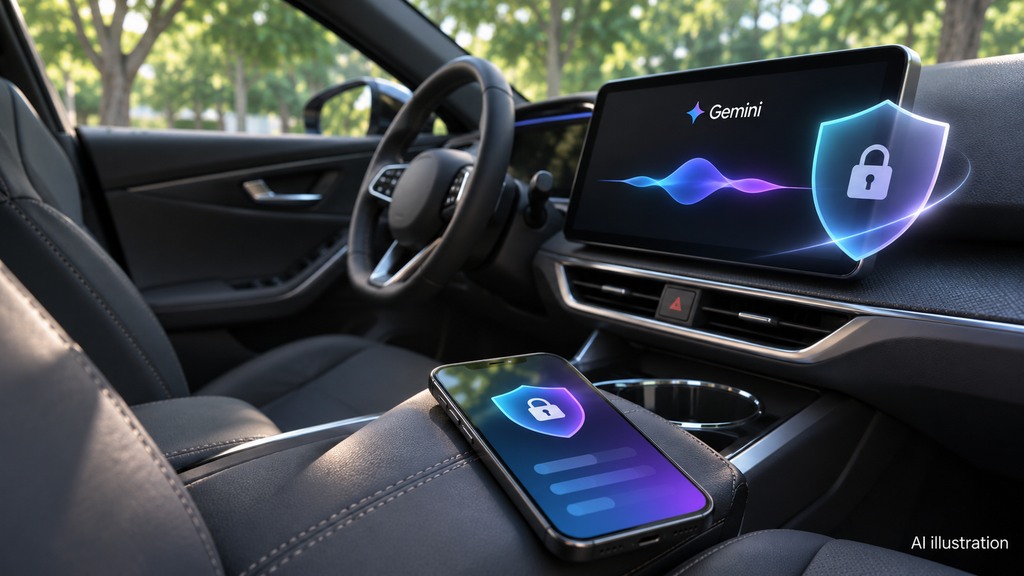
Google’s Gemini Apps Privacy Hub describes the collection of prompts and Live interaction data, activity controls and human review of some data. Turning off activity does not mean that no processing occurs.
There is also a simpler privacy issue: someone sitting beside you may hear the answer. Avoid reading out customer details, passwords, private family messages or confidential meeting material in a shared car.
Before using personal integrations, review the connected services and decide whether the convenience is worth the access. A general conversation does not require you to begin by exposing your inbox.
Availability in the USA, UK, Canada, India and Bangladesh
For readers in these markets, check the actual app and account rather than treating “global rollout” as proof of access to every feature. Verify your selected language, account eligibility and available integrations locally.
The announcement does not provide a complete country-by-country matrix, a CarPlay-specific minimum iOS version or a separate CarPlay price. This guide therefore does not invent those details or recommend a paid upgrade to solve a missing icon.
Your final success check
Before relying on Gemini on Apple CarPlay, confirm three things while parked: Gemini Live works on your iPhone, the dashboard app opens, and you can start and stop a simple conversation.
If those work, add only the integrations you need. If the icon remains absent after the published prerequisites are complete, document the symptom and check for rollout updates. A missing app alone is not a reason to replace your phone, reset it or buy new dashboard hardware.