iPhone Storage Full? Start Here Before Deleting Photos

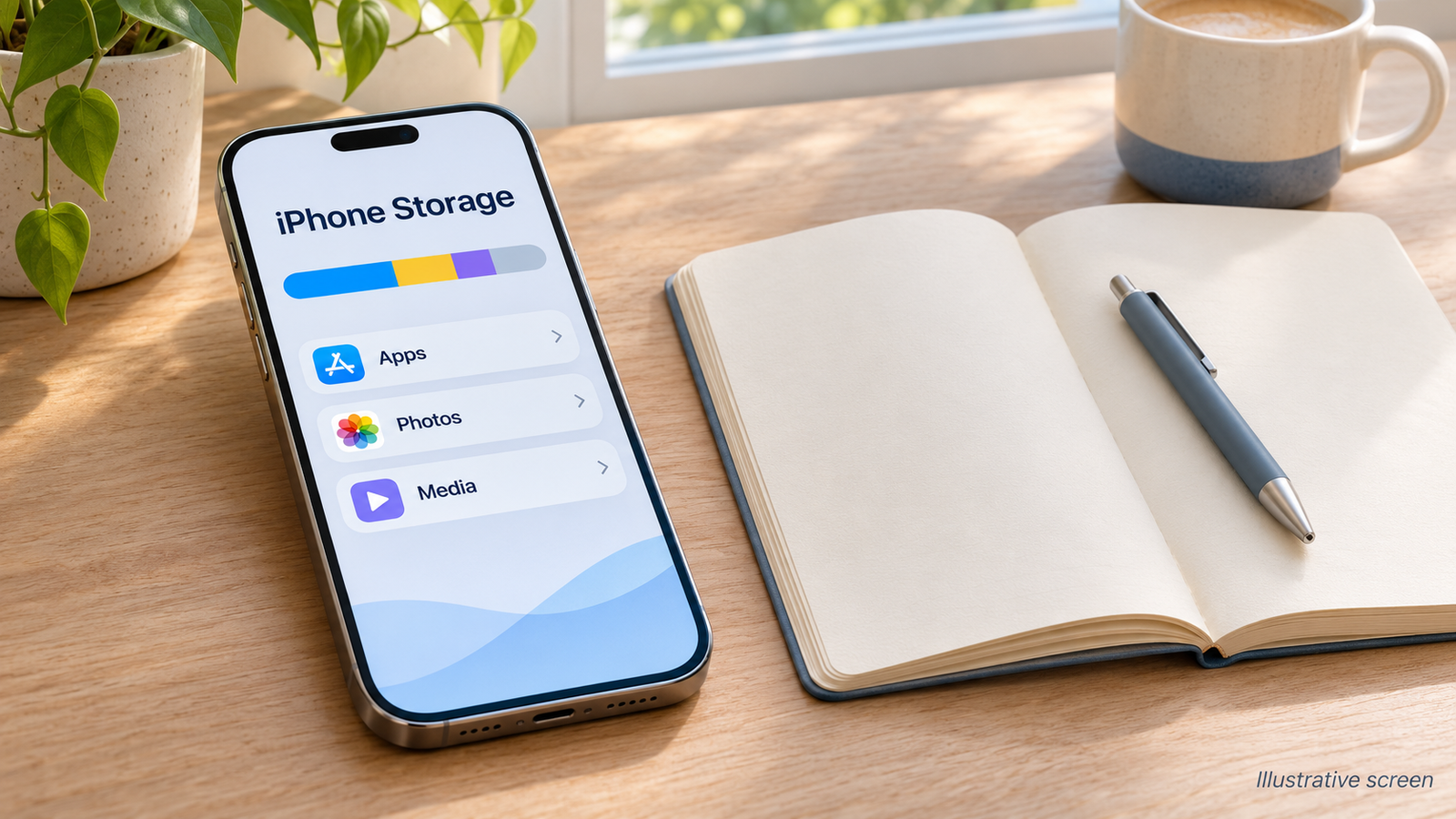
An iPhone storage full warning does not mean your photo library has to go. Start by checking what is using the space, then offload an unused app or remove an offline download you no longer need. If photos are the main problem, iCloud photo optimization can reduce their local footprint while keeping your library available.
There is one important distinction: keeping access to your photos is different from keeping every full-resolution original downloaded on your phone. If you need everything available offline, start with apps and downloads.
Quick Tips
- Check Settings → General → iPhone Storage before changing anything.
- Try Offload App rather than Delete App when you want to retain its documents and data.
- Remove watched videos or other replaceable downloads through the app that downloaded them.
- Confirm photo syncing has finished before relying on a cloud copy.
- Do not delete pictures from Apple Photos just because they are in iCloud. Deletion can sync to other devices.
For a shared household with Android devices, our separate Android storage cleanup guide covers their different settings.
Basic Fixes: Find the Biggest Removable Item
1. Check the Storage Breakdown
- Open Settings.
- Choose General → iPhone Storage.
- Let the categories and app list load.
- Note your available space and the largest categories.
A useful cleanup starts with the category that is actually large. If an offline-video app holds most of your removable content, changing photo settings may miss the immediate problem.
Apple explains the categories and recommendations in its iPhone storage guide.
2. Offload One App You Rarely Use

- Stay in iPhone Storage.
- Select an app you recognize but do not currently need.
- Tap Offload App and confirm.
Offloading removes the app itself while retaining its documents and data. Deleting removes the app and its related data.
Check the app’s size before proceeding. Offloading may offer limited benefit when its stored documents account for most of the total. You will also need to download the app again to use it, so keep travel, banking and work apps ready if you may need them without reliable internet.
See Apple’s explanation of offloading and deleting apps.
3. Remove Replaceable Offline Downloads
Open your streaming or podcast app and review its Downloads section. Remove content you have finished with using that app’s own controls.
Illustrative example: A downloaded series saved for a completed trip may be easier to replace than family photos. Check whether you can stream or download it again before removing it.
Be selective with personal documents. A downloaded ticket or work file may still be important even if you have not opened it recently.
Detailed Fix: Reduce Photo Storage Without Deleting Your Library
Before You Start
You need your Apple Account, sufficient iCloud space and a reliable connection. An initial upload can take time and use substantial data. Use a trusted connection, especially if your mobile plan has a limited allowance.
For irreplaceable photos, keep a separate verified copy as well. A synced library is not protection against every accidental deletion.
Turn On Optimize iPhone Storage
- Open Settings → [your name] → iCloud → Photos.
- Enable Sync this iPhone if you want to use iCloud Photos.
- On iOS 27 or later, open iPhone Storage within these Photos settings.
- Ensure Optimize iPhone Storage is enabled. On earlier versions, look for the optimization option directly in the Photos settings.
- Allow uploading and syncing to finish.
Apple stores full-resolution originals in iCloud and can keep smaller versions on your phone as space is needed. Originals may need to download when you open or edit them.
Follow Apple’s photo-storage instructions if your screen looks different. Optimization is not a promise of an immediate, fixed amount of free space.
Avoid the Deletion Trap
With iCloud Photos enabled, deleting a picture on one device also deletes it from other devices using the same synced account. Uploading a photo does not make the normal Delete button a safe way to remove only its local copy.
Apple describes this in its photo deletion guidance. Use optimization for this workflow rather than manually deleting the library.
iPhone Storage and iCloud Storage Are Different
| Storage type | What it means | What buying more iCloud space changes |
|---|---|---|
| iPhone storage | Physical space inside your phone | Does not increase physical capacity |
| iCloud storage | Online space associated with your account | Can support a larger synced library and backups |
An iPhone storage full warning can remain after an iCloud upgrade. The phone still needs time and appropriate settings to reduce local use.
Avoid purchasing a plan before checking which storage is full. An app with large offline downloads may need a different solution.
Still Seeing an iPhone Storage Full Warning?
| What you notice | What to check next |
|---|---|
| Offloading barely helped | Compare the app itself with its Documents & Data |
| Photo storage remains large | Check upload status, iCloud capacity and optimization settings |
| Space disappears again | Review automatic downloads and newly downloaded media |
| System Data looks large | Check Apple’s storage guidance; do not remove unfamiliar files |
| You need every photo offline | Prioritize apps and replaceable downloads instead of cloud optimization |
There is no guaranteed amount of space this guide will recover. The result depends on what is stored and what you are comfortable removing.
FAQs
Can I free up space without paying for iCloud?
Yes. Offloading apps and removing replaceable downloads do not require an iCloud subscription. Whether those steps free enough space depends on your phone.
Will offloading an app delete my photos?
Offloading retains that app’s documents and data. It is different from deleting items in your photo library. Read the confirmation screen before proceeding.
Why are optimized photos harder to access offline?
The full-resolution original may be stored in iCloud rather than downloaded locally. Keep essential pictures available before travelling somewhere with unreliable connectivity.
Check That the Cleanup Worked
Return to Settings → General → iPhone Storage and compare available space with your starting point. Open important apps and check that the photos you need remain accessible.
When you see an iPhone storage full warning, make one targeted change at a time. Start with replaceable content, use optimization only when it suits your internet access, and verify important files before removing anything.