Google Translate Tips: 7 Hidden Features You Didn’t Know


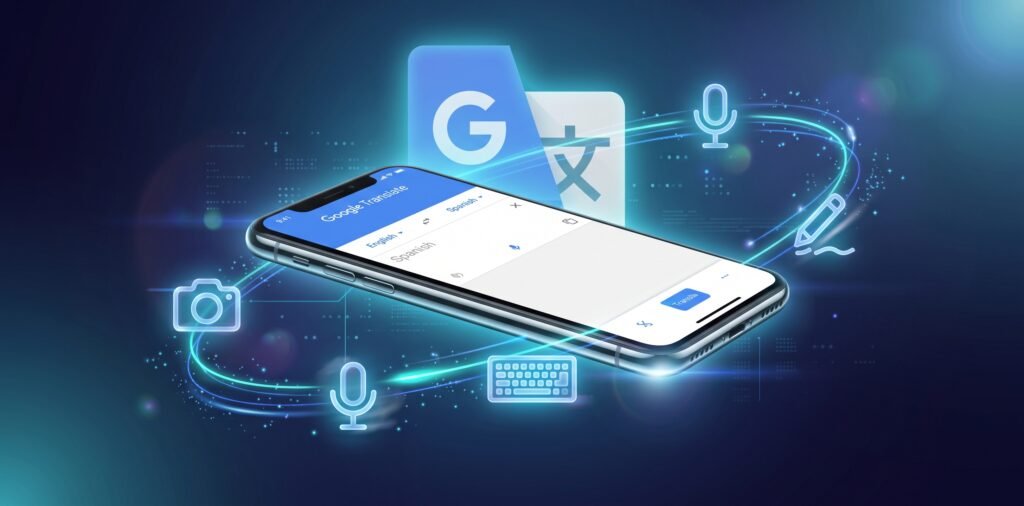
Google Translate is 20 years old and is used by more than a billion people a month. But most users are only skimming the surface. From offline camera translation to AI-powered explanations that decode idioms and cultural nuance, these Google Translate tips include all the features hidden in the app that really do change how you use it. If you’re traveling, studying, or just keeping in touch with family overseas, these little-known Google Translate tips will save you time and heartaches.
1. Offline Camera Translation (Download First)
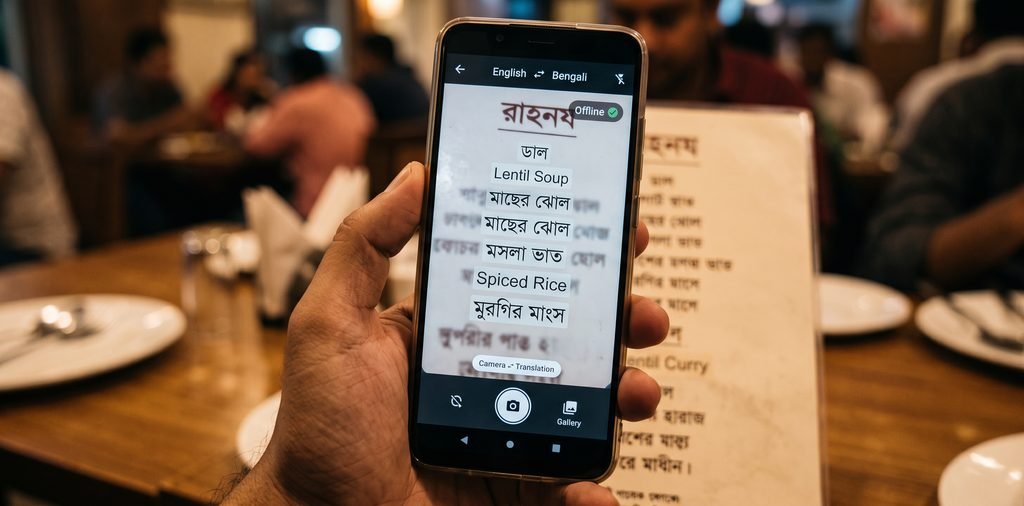
You can point your phone at a menu or sign and the camera translation feature will lay the translation over the image. What most people don’t know: it works without internet – if you first download the language pack.
How to set it up:
- Open Google Translate
- Tap your profile pic
- Open Settings > Offline translation
- Download languages you want
Once downloaded, Camera Mode works in airplane mode, on the subway, or in a foreign country without a data plan. This is the most handy Google Translate tips for travelers.
2. Conversation Mode (No Need to Tap)
The normal voice translation is a matter of tapping the microphone, saying something, tapping again. And Conversation Mode gets rid of the tapping entirely.
How to use it:
- Click on the conversation icon (two speech bubbles)
- The app interprets both languages at the same time
- Translations show up on the same screen in both languages
Pro tip: Hit the “face-to-face” icon to split the screen in half. Put the phone on a table between you and the other person. You each see the translation on your side of the screen. This is the closest you’ll come to a real-time interpreter on your phone.
3. Tap to Translate (Android Only)
This is the most useful feature most Android users never turn on. When turned on, you can copy text from any app, be it WhatsApp, PDF, or a browser and you will see a floating Google Translate bubble. Tap it and the translation pops up without leaving the app.
How to get active:
- Open in Google Translator
- Tap on your profile image
- Settings,
- Allow Tap to Translate
- Allow the accessibility permission if asked
This makes Google Translate an app you don’t open but one that is always there. You will use it more in one week than you have in the past year of using the app. This is one of the most practical Google Translate tips for Android users.
4. The Understand Button (AI Explanations)
Google has now integrated Gemini into Translate. When you translate a phrase, tap “Understand” and the app explains the meaning, context and alternatives.
Why it matters: Idioms are the hardest part of translation. If you translate “break the ice” literally, it doesn’t make any sense in Bengali. Tap Understand and Google explains that it means to start a conversation, with the natural Bengali equivalent.
You can also click on “Ask” for a more formal or informal version of the translation. It’s like having a language tutor in your back pocket.
5. Handwriting input for non-Latin
Typing Bengali, Japanese or Arabic on a normal keyboard is slow. Tap the handwriting icon (a little pencil) and write the character directly on the screen. Google knows it, and translates.
When to use it:
- You see a character you don’t know how to write.
- You are reading a written note or sign
- You want to look up just one word, quickly
This is faster than changing keyboards for individual words.
6. Save Translations for Offline
Google Translate allows you to save translations to a phrasebook for quick reference later.
How to save a translation:
- Translate a sentence
- Tap the star icon (Save) .
- Go to the main menu and tap on “Saved” to access saved phrases
This is good for travel phrases you will need over and over again — “Where is the bathroom?” or “How much does this cost?” — and words you are trying to learn.
7. Transcription mode (real-time transcription)
Transcribe mode lets you turn spoken language into text instantly. This is for lectures, meetings or conversations in which you cannot stop to translate.
How to use it:
- Tap the “Transcribe” icon (microphone with lines)
- Choose source and target languages
- Tap microphone to start speaking
This is shown on the screen as text. This is not a substitute for a human interpreter, but it can be helpful to follow along in a presentation or to understand a recorded message.
The One Setting You Should Change Today
If you’re on Android, turn on “Tap to Translate.” That’s the feature that makes Google Translate an app you open, and a tool you always have with you.
iPhone users: download offline language packs before your next trip. It’s the difference between having a translator and having a brick when you lose signal.
Frequently Asked Questions (FAQ)
Does Google Translate work offline?
Yes, but you need to download language packs first. Download the languages you want in Settings > Offline translation. After that camera and text translation work without internet.
What is the most useful feature of Google Translate?
Tap to Translate (Android) is the best feature for everyday use. Best feature for travel is Conversation Mode.
Can Google Translate explain idioms?
Yes. Once you have translated a phrase, press the “Understand” button. Google uses AI to explain meaning, context and options.
Is Google Translate free to use?
Yes, Google Translate is absolutely free. No premium tiers or subscriptions.
Is Bengali language good for Google Translate?
Yes, Bengali is supported by Google Translate. For everyday communication the quality is fine, but it does struggle with idioms and formality. Think about GPT-4 for business use.
The Bottom Line
Most people don’t realize how good Google Translate is. Things like offline camera translation, real-time conversation mode and AI-powered explanations can really change the way you communicate in different languages.
Begin with one feature. Try it for a week And add another. You will be amazed at how much time you save yourself.
What do you like most about Google Translate? Share your tips in the comments below! Check out our other posts on NextTechUpdate for more tech tips.






1 Comment
[…] should take ten secs to learn how to check weather tomorrow. But most people do it the slow way: open a browser, type in a search, scroll past ads, and squint at a cluttered […]
Comments are closed.