
Free Up Storage on Android: 10 Safe Methods (2026)

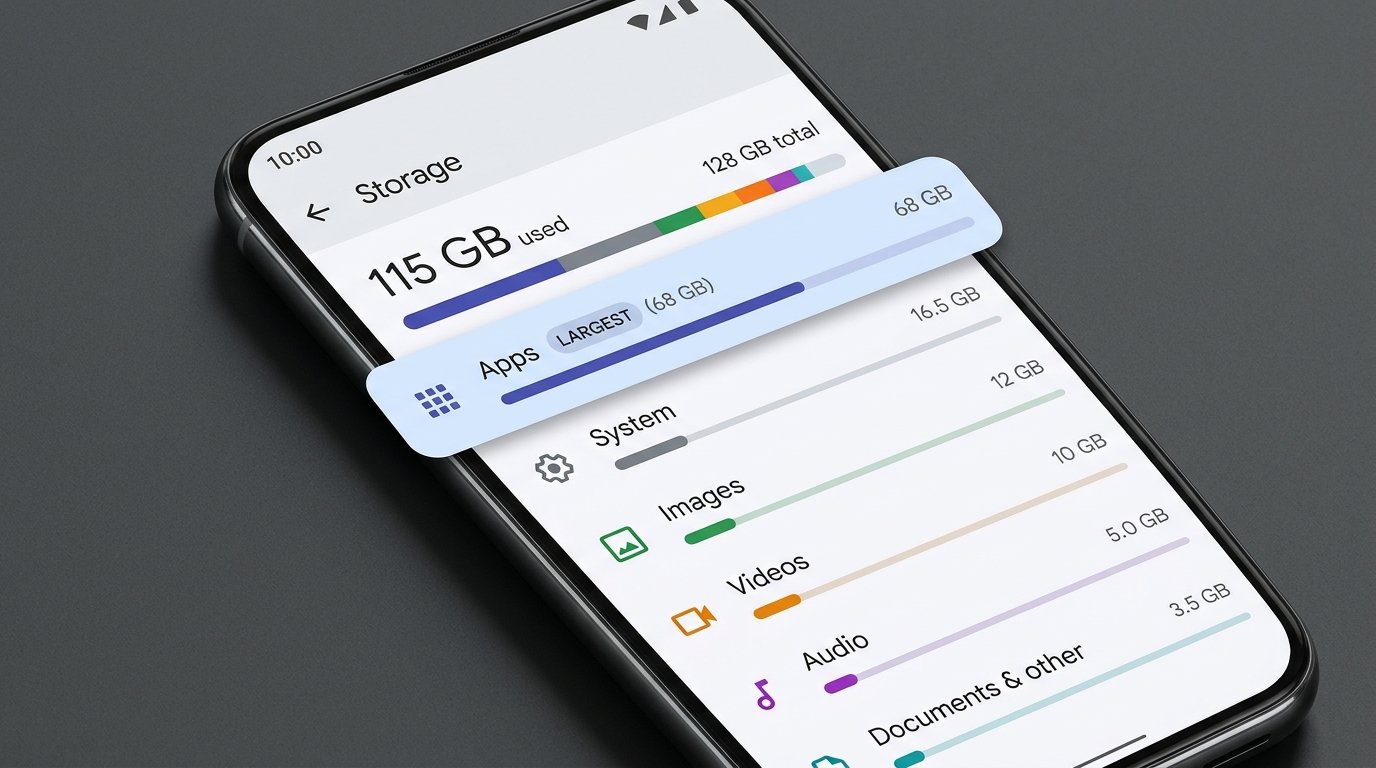
Are you getting a storage warning on your Android phone when trying to install an app, take a picture or download a file? Low storage can be annoying especially when your phone has important photos, documents, messages and videos. The great news is you don’t have to delete your personal files when you want to free up storage on Android — you can start by checking which apps are using the most space, deleting temporary files and cleaning up downloads you no longer need.
This guide will introduce you with useful tips to free up storage on Android and protect important files.
1. See What’s Taking Up Your Storage First
Before you start deleting things, find out where your space is going. This one step will prevent most mistakes in cleanup.
- Go to Settings.
- Tap Storage (on Samsung this may be listed under Battery and device care).
- Look at the categories — Apps, Images, Videos, Audio, Documents.
- Find out which categories take up the most space.
If videos or apps are your thing, run with them. If it’s not the problem, why touch personal photos or documents?
Tip: Before you start, take a screenshot of this screen. Once you’re done it gives you a before/after comparison.
2. Clear App Cache Instead of App Data
Apps save temporary files (cache) to load content faster. This can add up over time, particularly in browsers and social media apps.
- Open Settings -> Apps
- Pick an app (start with your browser, Facebook, Instagram, or a video app).
- Tap Storage or Storage & cache.
- Tap Clear cache .
Repeat for other large apps.
Critical distinction: Tap Clear cache, never Clear storage or Clear data. Clearing cache removes temporary files. Clearing data can wipe logins, settings, saved drafts, and locally stored information.
Normal for some apps to rebuild their cache as you use them again.
3. Check and Delete Unwanted Downloads
Browser files, messaging app files, and email client files are on your phone long after you’ve used them.
- Open Files, My Files, or your phone’s file manager.
- Open your Downloads folder.
- Sort by size/date.
- Delete only files you know you don’t need anymore.
Good candidates are old APK installation files, duplicate documents, videos you watched once, and tickets or PDFs that have expired.
Do not delete files because the name seems unfamiliar. It might be a document you need or a file that an app needs
4. Use Files by Google to locate junk files
Google Files can help you find duplicates, large files you may have overlooked, and junk files. You’ll most often find it pre-installed on devices, but if not, your phone maker’s file manager usually comes with similar tools.
- Google Open Files.
- Tap Clean. (
- Check the suggested categories.
- Open each category and look at the files before you delete anything.
Google says that deleting junk files can free up space without affecting the settings of the apps, but files deleted through this tool may be deleted permanently, so take a look at the selection before confirming.
Official guide: Clear junk files with Files by Google
5. Check WhatsApp Media
WhatsApp media is a common hidden storage space hog, especially when you’re in a lot of group chats and photos and videos auto-download.
- Open WhatsApp → Settings.
- Tap Storage and data → Manage storage.
- Review Large files and Forwarded lots of times.
- Only take what you don’t need anymore.
Menu names differ by app version.
Before deleting: save important photos, videos, voice notes, or documents elsewhere. Deleting media from WhatsApp can also remove your local copy.
You can also help reduce future storage use by turning off automatic media download for photos, videos and documents on mobile data.
6. Back up Photos, Then Delete Local Copies
Photos and videos are usually the biggest personal files on a phone. The safe solution is to back them up, check the backup, then delete local copies.
- Open up Google Photos.
- Tap on your picture of profile.
- Make sure backup is on and the correct Google Account is selected.
- Wait until the backup says complete. Check the backup status.
- Then select Free up space on this device, if available.
Warning: TThis feature will delete local copies from your phone. Google says that photos and videos that have been backed up can still be viewed in Google Photos after they’re removed, but may not be available in your phone’s normal Gallery app or offline. Never use it without checking the backup. An incomplete backup or wrong account can leave you short of files you thought you’d keep.
Official guide: Free up space on your Android device
7. Delete Apps You No Longer Use
Games and feature-heavy apps consume a lot of space, especially those that download additional content after installation.
- Go to Settings → Applications.
- If your phone allows it, sort by storage usage.
- Go through the list and uncheck any apps you recognize that you don’t need.
Before uninstalling: make sure the app saves important files locally. Uninstalling an app may also uninstall its local data.
Google Play can archive unused apps on supported devices and apps. Archiving removes the app’s installation files but keeps your personal app data, freeing up space. The app icon will still be on your home screen and reinstalling will restore your data, you’ll just have to download the app again to use it.
Official guide: Free up storage on Android — Google Play Help
8. Delete content you’ve already watched or listened to while offline
Streaming apps allow you to download videos, music and podcasts for offline use— and those downloads quietly accumulate.
Open the app where you downloaded the content (YouTube, Netflix, Spotify, podcast app) and navigate to the Downloads or Offline section. Delete old podcasts and music you no longer need offline, series you’ve finished watching.
Do not delete files within system folders unless you know what they are for. The original app is a cleaner and safer way to delete downloads.
9. Transfer Important Files to a Computer or External Drive
Transfer your photos, videos and documents off the phone if you want to keep them, but need the space back.
- Use a compatible USB cable to connect your phone.
- When prompted, select File transfer mode.
- Copy the folders you want to keep.
- Ensure that the computer can run multiple copies of files.
- Then, and only then, delete the originals from your phone.
No puter? Or you could use a compatible USB-C external drive or a reliable cloud storage service. Just make sure to verify the copies before you delete anything.
10. Avoid These Common Cleanup Mistakes
Some of the “cleanup” actions create more problems than they solve:
| Mistake | Why it’s risky |
|---|---|
| Tapping Clear data without checking | Removes saved settings, logins, downloads, and local app info |
| Deleting photos before confirming backup | Cloud backups are sometimes incomplete or on the wrong account |
| Installing unknown “cleaner” apps | Can be adware, or request excessive permissions |
| Deleting unfamiliar system files | May be required by Android or an installed app |
| Emptying Trash immediately | Skips your only recovery window |
Best bet: Check the storage, clean one category at a time, and make sure your important files are still accessible.
Quick Comparison: Which Method Should You Try?
| Method | Potential benefit | Risk level |
|---|---|---|
| Clear app cache | Removes temporary files | Low |
| Remove downloads | Clears unnecessary files | Low, if reviewed |
| WhatsApp media cleanup | Can remove large media files | Medium |
| Back up and remove local photos | Can free up significant space | High if backup is incomplete |
| Uninstall unused apps | Frees up space used by apps | Medium |
| Remove offline downloads | Clears downloaded content | Low, if reviewed |
Frequently Asked Questions (FAQ’s)
Will clearing cache delete photos and messages?
No — clearing an app’s cache usually only deletes temporary files, not your personal photos or messages. The exact effect depends on the app and the option you pick. Do not touch Clear storage or Clear data unless you know what it will do.
Why does my Android still have full storage even after I deleted files?
The files might be sitting in a Trash or Recently Deleted folder even after you have deleted them. Other apps may also be taking up space for downloads, cached content and local data. Clean up then recheck the storage screen.
Can I increase Android storage without getting a new phone?
Often – by deleting downloads, clearing caches, archiving supported apps and transferring files to a computer or cloud service. It is dependent on the model of your phone whether you can add a microSD card; most modern flagships no longer have a slot.
Is it safe to use phone cleaner apps?
Not all cleaning apps are necessary or trustworthy. Start with Android’s built-in storage settings and Files by Google. If you install another app, make sure to check its developer, permissions, and reviews before granting file access.
Does app archiving delete my data?
No. Google Play archives an unused app on a supported device, removing the installation files but keeping your personal app data. You will need to download the app again to use it.
Final Words
You don’t need to delete important photos, messages or documents to free up storage space on Android. Start with storage usage, clear caches of the biggest apps, check your downloads and offline media, and delete apps you no longer use.
If photos and videos take up most of your space, make sure the backup is correct before deleting local copies. Keep a second copy on a computer or a trusted cloud service for important papers.
If you do it right, a cleanup creates space for new apps, photos and system updates — while keeping the files that matter to you.







1 Comment
[…] How to Free Up Storage on Android […]
Comments are closed.