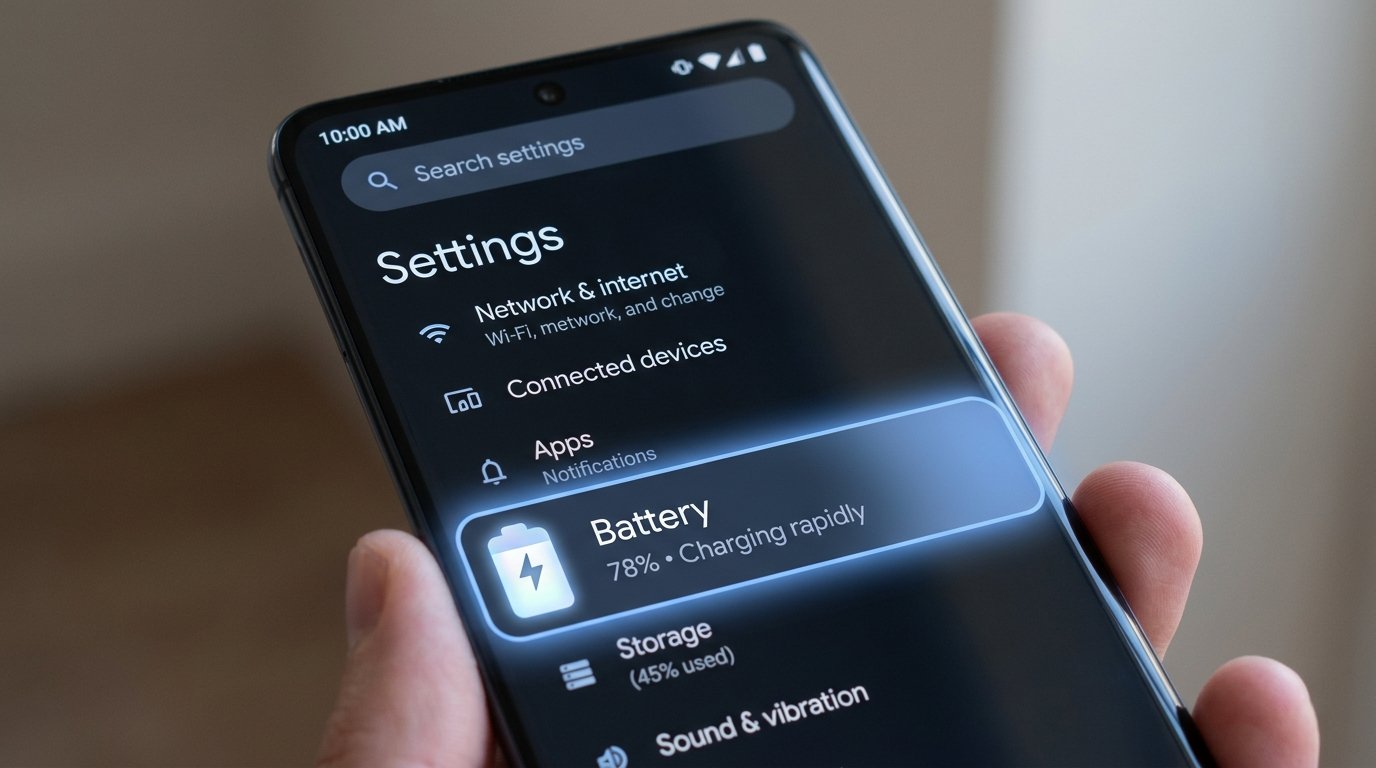
Check App Permissions: Camera & Microphone Guide (2026)

Your laptop and smartphone are listening and watching. The camera and the microphone are always there, waiting for a command. But do you really know which apps are allowed to use them? If you want to see your app permissions and re-claim your privacy, this guide is for you.
Privacy is not just a setting by 2026, it’s a necessity. There are many apps (ranging from social media apps to basic utility tools) that request access to your camera and microphone without a clear reason. Sometimes it’s ok (like a video calling app). Sometimes it isn’t. It takes less than five minutes to check app permissions on Android, iPhone and Windows, but it will give you peace of mind.
This guide walks you through the exact steps to take on each platform, including how to see which apps have been used recently and how to revoke access right away.
Check app permissions. See exactly what apps can see and hear you.
More Reading: How to Stop Spam Calls on Android and iPhone
Check App Permissions on Android How to
Android offers two powerful ways to see what permissions your apps have: by app, or by permission type. Both are useful depending on what you want to learn.
Method 1: Permissions per Application
If you think an app is getting a little too invasive, use this method.
- Unlock your Android phone and go to Settings.
- Tap Apps or Apps & notifications.
- Select the app you want to check. If you don’t see it, first tap See all apps.
- Select Permissions.
- You will see the list of permissions that the app has requested including Camera, Microphone. Tap one to change setting.
Your camera and microphone permissions choices:
- Only when you are using the app: This is the safest way for most apps.
- Ask for access every time: The app asks for access every time it opens
- Don’t allow: The app has no access to the camera or microphone at all.
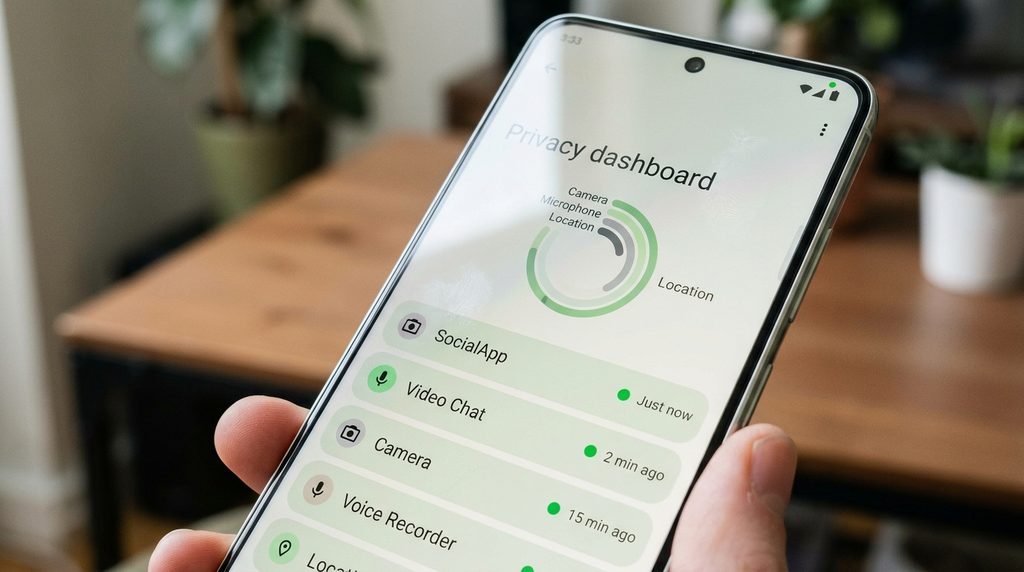
Method 2: Checking Permissions by Type (Privacy Dashboard)
Here’s the quickest way to see which apps have recently accessed your camera or microphone.
- Settings > Security & privacy > Privacy > Permission manager (on Pixel and most modern Android phones)
- Tap Camera or Microphone
- It will show you a list of all apps that have access to that permission. Apps that used it in the last 24 hours are highlighted..
Pro Tip: Android shows a green dot at the top right of the screen when the camera or microphone is in use. Swipe down from the top to see what app did it .
How to see app permissions on your iPhone
Apple is more stringent. Apps need permission to access the camera or microphone and iOS makes it easy to review and revoke access.
Step-by-Step Guide
- On your iPhone, open Settings.
- Scroll down and tap on Privacy & Security.
- Tap Camera or Microphone
- You’ll see a list of all apps that have asked for access. Turn off for any app you don’t recognize.
How to know if it is in use: You’ll see a green indicator at the top of your screen when an app is using your camera (or your camera and microphone at the same time). If an app is using only the microphone, the indicator is orange. You can also open Control Center to view a recent usage report.
Important Note: Some apps will legitimately need to access your camera (WhatsApp for video calls, for example, or Instagram for photos). Don’t just blindly turn everything off Ask yourself “Does this app need to see or hear me to be able to do its work?” A red flag is when a calculator app asks to access your microphone.
How to View App Permissions in Windows 11
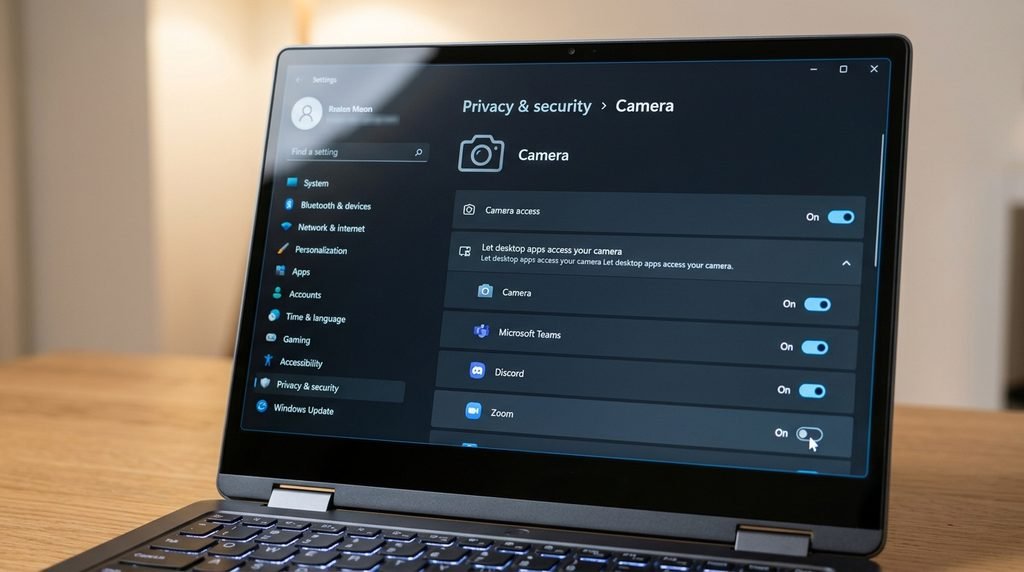
Your computer is just as vulnerable as your phone. There’s a clear privacy dashboard for your camera and microphone in Windows 11.
Reviewing Camera Access
- Open Settings (press Windows + I)
- Visit Privacy & security > Camera.
- Here you will see a list of apps from Microsoft Store with individual toggles. Disable access for any app that doesn’t need the camera .
- Scroll down to Recent activity to see which apps have accessed your camera in the last seven days.
Desktop Apps: You can’t toggle desktop apps (like Chrome or Zoom) on/off individually from this list. Instead, use the “Let desktop apps access your camera” master toggle. Turning this off prevents desktop apps from using the camera .
Check Microphone Permissions
- Navigate to Settings > Privacy & security > Microphone.
- Go through the list and turn off access for apps you don’t need it for. For example, a feedback tool or a game does not need access to the microphone.
- Under Recent activity, you can see which apps have been listening in.
Visual Indicators: If your device has a camera, a light next to the lens will turn on when an app is using it. When an app is using the microphone, a microphone icon appears in the taskbar system tray .
What to do when you find a suspicious app
If you discover an app with access to your camera or microphone that shouldn’t have it, do this immediately:
- Follow the above steps to revoke access.
- If you don’t recognize or don’t use the app, uninstall it.
- Scan for security with Google Play Protect (Android) or Windows Security.
- Review your account activity for any unauthorized logins or actions.
As a general guideline, if the core function of an app doesn’t require it to see or hear you, it shouldn’t be able to access your camera or microphone. Period. Period.
Common Questions
How do I know if an app is using my camera in secret?
When the camera is on, Android displays a green dot in the top-right corner. On an iPhone, you’ll see a green indicator at the top of the screen. On Windows, the camera light activates, or you get a notification. If you see these indicators and you are not using a camera app then an app is using it in the background.
Is it possible to block all apps from using my camera at once?
Yeah. On Android , navigate to Settings > Security & privacy > Privacy > Privacy controls and turn off Camera access completely . You can’t disable hardware globally on iPhone, but you can deny access on a per-app basis. On Windows, disable the master Camera access toggle in Settings.
Why would a flashlight or game app want to access your microphone?
It probably doesn’t matter at all. This is a typical way for ad-supported apps to gather data. Revoke the permission right away. The app will still work, it just can’t listen to you.
Does deleting an app remove its permissions?
Yes. Uninstalling an app removes the permissions it had from the system. But sometimes, if you reinstall the same app later, it could keep its old permissions. Always check after reinstall.
How frequently should I check app permissions?
Once a month is a good practice, or right after you install a new app. It only takes two minutes and prevents privacy leaks in the long run.
The Bottom line
Learning to check app permissions is one of the easiest and best privacy habits you can build. Use the Privacy Dashboard on Android On iPhone, tap Settings > Privacy & Security. Windows Camera and Microphone Privacy page
Remove access for anything that doesn’t need it. Your camera and microphone belong to you – not to every app you install.
See a suspicious app with unnecessary permissions? Share your experience in the comments below! Visit NextTechUpdate for more privacy guides