Fix Android Battery Drain: Post-Update Guide (2026)

You just updated your phone to the latest Android and now your phone can barely make it through the day. It’s frustrating, but it’s also very common. The good news is that if you want to fix Android battery drain after an update, in most cases nothing is actually broken.
Post-update battery drain is when your device is working hard in the background. The system is updating new codes, re-indexing files, and re-learning your usage pattern so “Adaptive Battery” can work properly. Most users find it resolves itself within a few days in most cases. But if the problem continues, there are some things you can do to find the culprit and get your battery life back.
In this guide we cover the best ways, from quick software checks to locking down misbehaving apps.
Step 1: Wait 48-72 Hours Before You Panic
Give your phone some time before you start changing settings. When Android has a big update it has to optimize the new software and re-learn how you use your apps This can lead to a temporary increase in power consumption and heat.
What to do:
- Use your phone as usual for 2-3 days.
- Keep “Adaptive Battery” on (Settings > Battery > Adaptive preferences)
- Don’t factory reset your phone straight away. Most of the time it’s not needed and will just kick off the optimization process again.
If battery life is still poor after 72 hours, proceed to the next steps.
Step 2: See Which App Uses the Most Battery
The best way to fix Android battery drain is to find out exactly which app is draining the battery. Android has a tool built into it for this.
How to check:
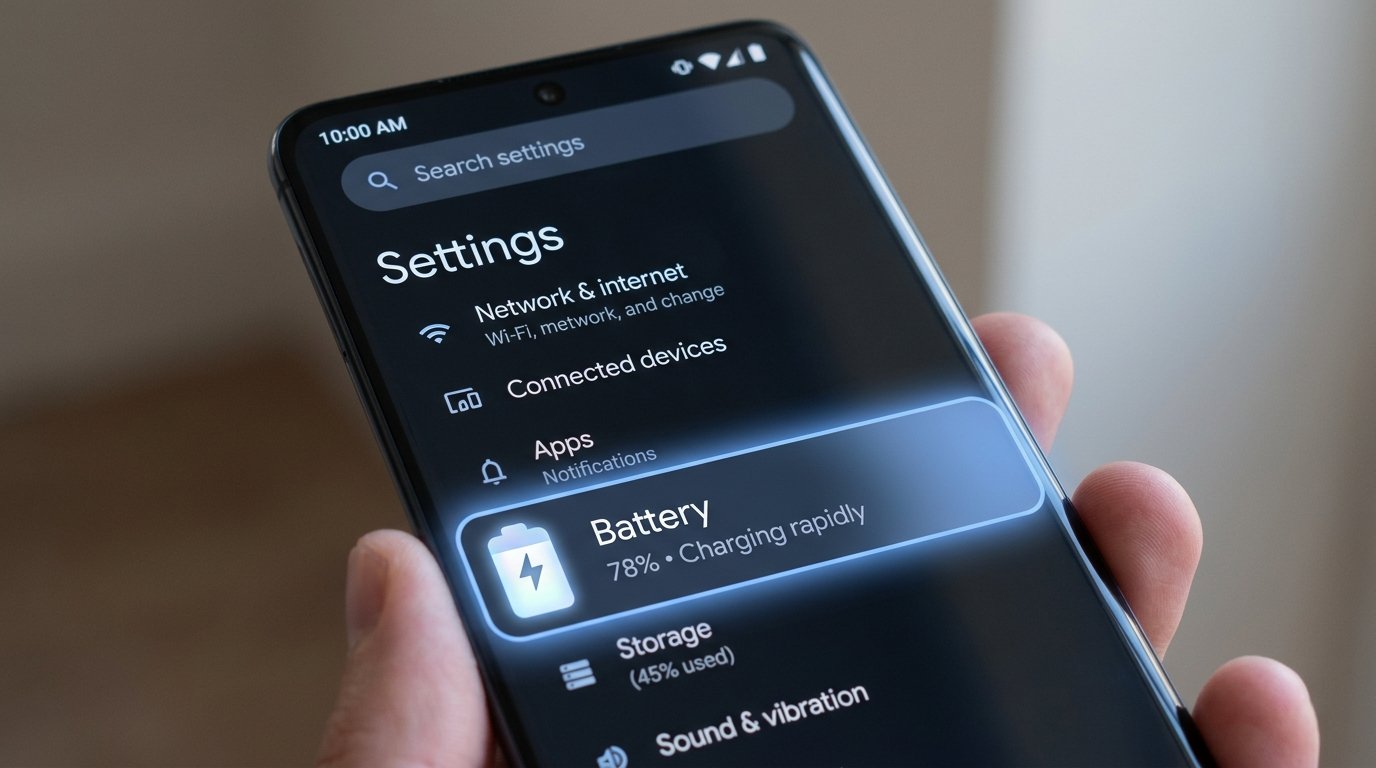
- Go to Settings > Battery > Usage of battery.
- See the list of applications. Look for apps with a high percentage of usage but very little “screen-on time.”
- Tap a suspicious app and see how much background activity it is doing.
Typical offenders include the Google app (particularly if it’s constantly refreshing the Discover feed), Google Play Store, social media apps, and streaming services, which often exhibit significant background activity. If an app is using a lot of battery when you’re not actively using it, then that’s the problem.
Step 3: Limit background activity for troublesome apps
Once you know which apps are sucking your battery dry, limit their ability to run in the background.
On most Android phones (Pixel, Samsung etc):
- Navigate to Settings > Apps > See all apps.
- Choose the app that’s killing your battery.
- Tap Battery usage (or Battery).
- Turn off or select Limited Allow background use.
Note: Don’t block messaging apps (like WhatsApp or Telegram) which you use for real-time notifications. If you limit them, they will not notify you until you open the app.
On Samsung Galaxy phones: You can also go to Settings > Battery > Background usage limits and add the app to “Sleeping apps” or “Deep sleeping apps” list.

Step 4: Update all apps on the Play Store
Sometimes it’s not the update, but an outdated app that’s the problem. An app that hasn’t been updated to work with the new Android version can cause compatibility issues and excessive battery drain .
What to do:
- Open the Google Play Store.
- Tap your profile icon, then Manage apps & device .
- Tap Update all.
- Wait for the updates to be installed, then reboot your phone.
Step 5: Check for a System Update for Follow Up
Google and manufacturers tend to send out small patches to fix bugs that came with a big update. For example, Google rolled out Android 16 QPR3 Beta updates specifically to fix excessive battery drain and charging bugs on Pixel devices .
What to do:
- Head into Settings > System > System update (or Software update on Samsung).
- Check for updates.
- Apply any patches that are available.
Step 6: Lighten Screen and Connection Load
If you want to extend your battery life while you are troubleshooting, turn off the features that use the most power.
Practical adjustments:
- Refresh Rate: Change to 60Hz from 120Hz. Go to Settings > Display > Motion smoothness (Samsung) or Smooth Display (Pixel), and select Standard.
- 5G: Turn off 5G if you are in a low-coverage area. Your phone has to work harder to hold onto a 5G signal, and that uses up battery.
- Always-On Display: Turn off temporarily.
- Brightness: Turn on Adaptive Brightness and adjust the manual level .
Step 7: Locate a Rogue App in Safe Mode
If that doesn’t work, a third-party app could be draining your battery but not appearing in the standard battery list. Safe Mode disables all third party apps so you can see if the problem is software related.
How to get into Safe Mode:
- Power button. Press and hold.
- Press and hold Power off/Restart until you get the prompt for Safe Mode.
- Press OK.
If your battery life is good in Safe Mode, then a downloaded app is the culprit. Restart your phone normally. Uninstall apps one at a time (starting with the most recently installed) until the drain ceases.
Frequently Asked Questions
Why does my battery drain so fast on Android after update?
Android has to re-optimize the new software and re-learn your usage patterns after an update. This background work can temporarily boost battery consumption. For most users it clears in 48 to 72 hours .
How long after update does battery drain?
It usually lasts 1 to 3 days. If it continues for more than a week then it’s probably a particular app or a system bug and you should try the above troubleshooting steps.
Does rebooting your phone help battery drain?
Yes. Restarting can clear temporary glitches and stop apps that are stuck running in the background. This is always the first step to try.
Should I factory reset my phone to repair battery drain?
Not at first, no. It takes a loooong time to reset factory settings and is usually not needed. First, try the app restriction and update steps. If the problem persists for weeks and you’ve exhausted all other options, a reset should be considered .
Is it normal for a phone to get hot after an update?
Yes. The optimization process is exothermal. If the phone is still hot after days of idling following the update, an app is likely misbehaving in the background.
The Final Word
THow To Fix Android Battery Drain After Update Be Patient Your Phone Is Optimizing If the problem persists for more than 3 days, check your battery usage stats, restrict the background activity of heavy apps and install any patches available.
Apps, not the update itself, cause most battery drain issues. Often the secret to reclaiming your battery life is identifying the one app that’s working overtime.
Did these steps work? Tell us in the comments below how it went for you. Want more Android troubleshooting guides? Check out NextTechUpdate.