
How to Use WhatsApp Web: A Beginner-Friendly Guide

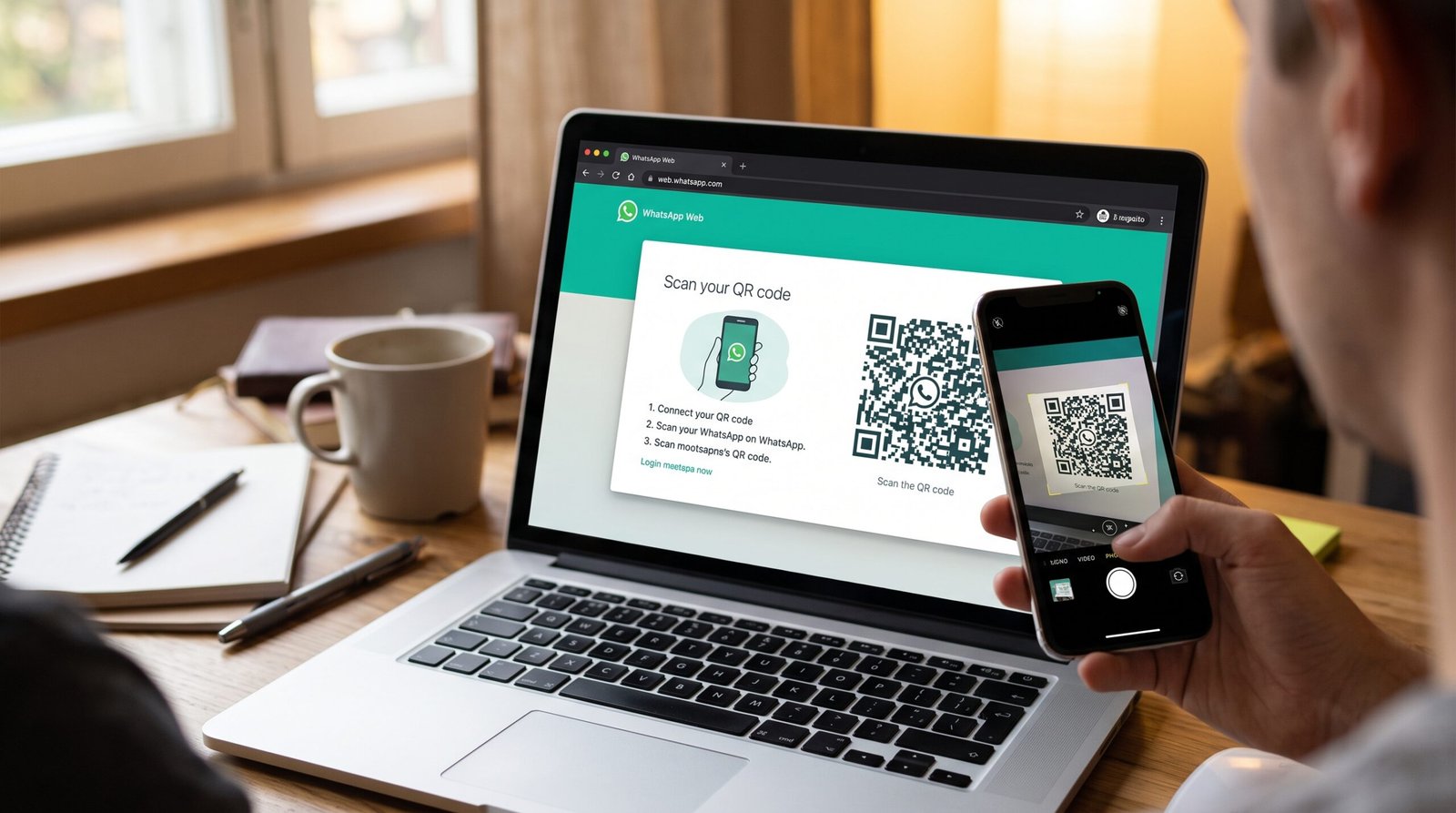
Learning how to use WhatsApp Web is the best way to boost your productivity when working on a computer. Instead of constantly picking up your smartphone to reply to messages, you can open your browser and access your chats directly on your PC or laptop.
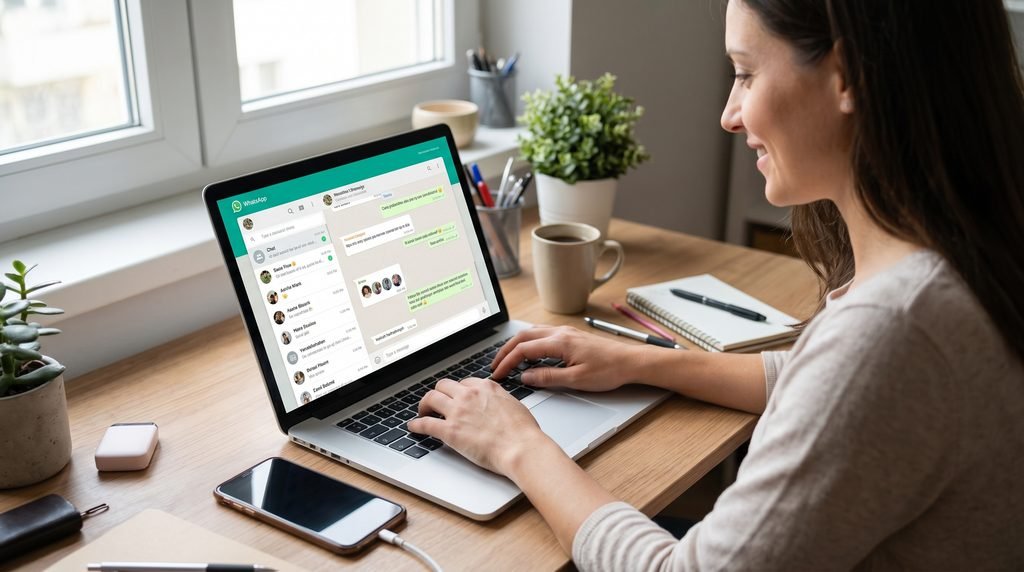
This is where WhatsApp Web comes to rescue. It mirrors your chats directly into your computer browser, so you can type on a full keyboard, send office documents with a simple drag and drop and manage conversations without constantly checking your phone.
Here’s a simple step-by-step guide to get it up and running in under a minute.
What You Need to Get Started
Before you begin, please ensure you have:
- A working WhatsApp account on your mobile.
- A computer attached to the internet.
- Modern web browser (Chrome, Edge, Firefox, Brave, Safari).
Step-by-Step: Linking Your Account
No separate downloads or complicated passwords needed to connect your phone to your browser, just a quick QR code scan.
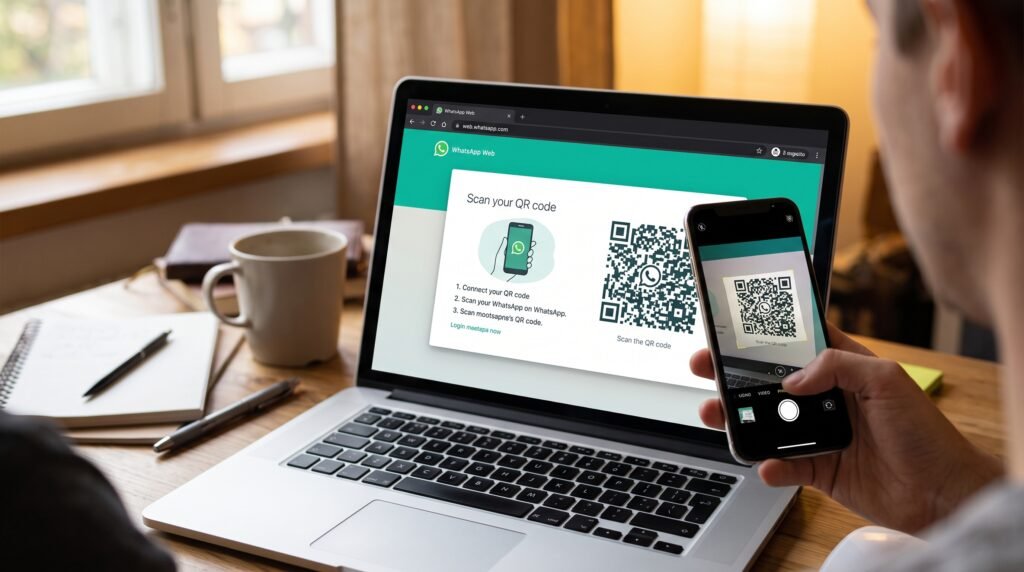
Open WhatsApp Web on your computer Open your browser and go to web.whatsapp.com. In the middle of the screen, a large square QR code appears.
Open WhatsApp on your phone: Unlock your phone and open the WhatsApp app.
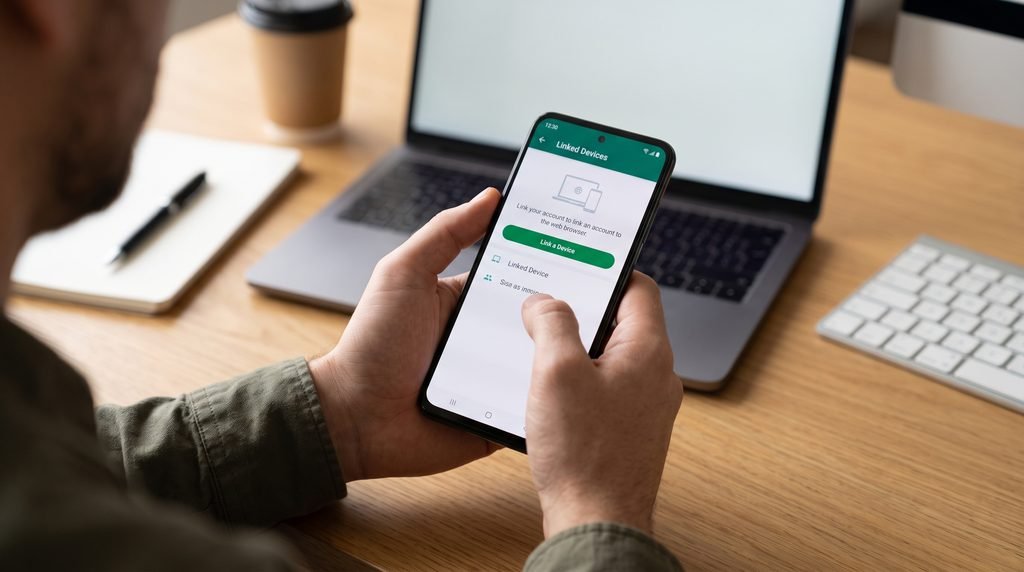
Go to Linked Devices:
On Android: tap the three vertical dots (⋮) in the upper-right corner, then tap Linked devices.
On iPhone:Tap the Settings gear icon in the bottom right corner.Then tap Linked Devices.
Scan the QR Code:Tap the green Link a Device button Hold your phone’s camera up to your computer screen to scan the QR code.
Your screen will refresh in two seconds and all your chats, contacts and media will sync right into your browser.
Pro Tips for Everyday Use
No need to have your phone online: Thanks to WhatsApp multi-device feature, your web session can stay alive, even if your phone dies or loses Wi-Fi connection.
Easy file sharing Need to send a PDF or image from your PC? Drag the file from your folder and drop it into the chat box.
While you’re typing: Press Shift + Enter to begin a new line, without prematurely sending your message.
Mute chatty groups: In the same way as on mobile, you can click the little arrow next to any group name on the left sidebar to mute notifications during focused work hours.
How to Log Out (Keep Your Privacy Intact)
If you are on a friend’s laptop or a shared office computer, don’t leave your WhatsApp logged in:
- Click the three dots (or menu icon) above your chat list on WhatsApp Web.
- Click Log out.
Did you forget to log off before you left? Do not panic. Open WhatsApp on your phone, go to Linked Devices again, tap on the active browser session and tap Log Out remotely.
Wrap Up
One of the easiest ways to make your daily communication more efficient is WhatsApp Web. Whether coordinating team projects, sharing work files or just keeping in touch with family while working at your desk, it keeps everything organized in one place. Bookmark the link, pair your device once and enjoy a much smoother typing experience!







1 Comment
[…] Related Reading: How to Use WhatsApp Web. […]
Comments are closed.